Setting up a new Vtech baby monitor shouldn’t feel like solving a puzzle when you’re already sleep-deprived and adjusting to life with a newborn. Whether you picked a classic RF model that works without Wi-Fi, or a newer app-enabled version for remote viewing, getting the camera and parent unit linked correctly is the first step to peace of mind. Outdated guides often skip model-specific quirks and common pairing mistakes that leave parents fumbling for 20 minutes or more when they’d rather be focusing on their baby.
This 2026-updated guide walks you through the exact steps to link every current Vtech baby monitor model, troubleshoot common connection issues, and optimize your settings for clear audio, crisp video, and reliable alerts. We’ll also cover safe placement and maintenance tips to keep your monitor working reliably for years. For more on this, see our guide on how to pair vtech baby monitor.
Pre-Setup Checks: Ensure Your Vtech Monitor Is Compatible for Linking
Before you start pairing, a quick 2-minute check will save you from frustration later, especially if you’re working with multiple units or an older model.
Identify Your Monitor Type (RF vs. Wi-Fi)
Vtech’s 2026 baby monitor line splits into two core categories, each with a different linking process:
- RF (Radio Frequency) models: These include the popular VM321, DM221, VM525, and BM series, which link directly to the parent unit via a secure radio signal. No internet or Wi-Fi is required, making them more secure against remote hacking and ideal for homes with spotty internet.
- Wi-Fi app-enabled models: Newer VC series and select 2024+ VM models connect to your home Wi-Fi network and the Vtech Baby Monitor app, letting you view the feed from your phone or tablet even when you’re out of the house.
You can find your model number on the back of the parent unit or bottom of the camera to confirm which type you have.
Confirm Multi-Device Compatibility
If you plan to link multiple cameras to one parent unit (to cover the nursery, playroom, and other common areas) or multiple parent units to one camera (for shared monitoring between caregivers), check your model’s spec sheet first. Most entry-level RF Vtech models support up to 4 cameras per parent unit, while premium models support up to 8. Mixing camera and parent units from different product generations will almost always cause pairing failures, so stick to same-series hardware for the most reliable connection. For more on this, see our guide on black friday baby monitor deals.
Gather Required Components
Linking will go smoothly if you have all the following on hand before you start:
- Both the baby camera and parent unit, fully charged or plugged into power
- The included Vtech power adapters (never use third-party chargers, as they can damage the unit’s battery and cause pairing errors)
- Mounting hardware if you plan to install the camera on a wall or shelf
- A digital or physical copy of your model’s quick start guide (available for free on Vtech's official setup documentation if you lost the paper copy)
If any parts are missing or damaged, you can order replacements directly from Vtech’s official parts store.
Step-by-Step Guide to Link Your Vtech Baby Monitor
The linking process takes 5-10 minutes for RF models and 15 minutes for Wi-Fi-enabled models. Follow the steps below for your specific monitor type.
Linking RF (Non-Wi-Fi) Vtech Monitors
These are the most common Vtech monitors, and they require no internet to set up:
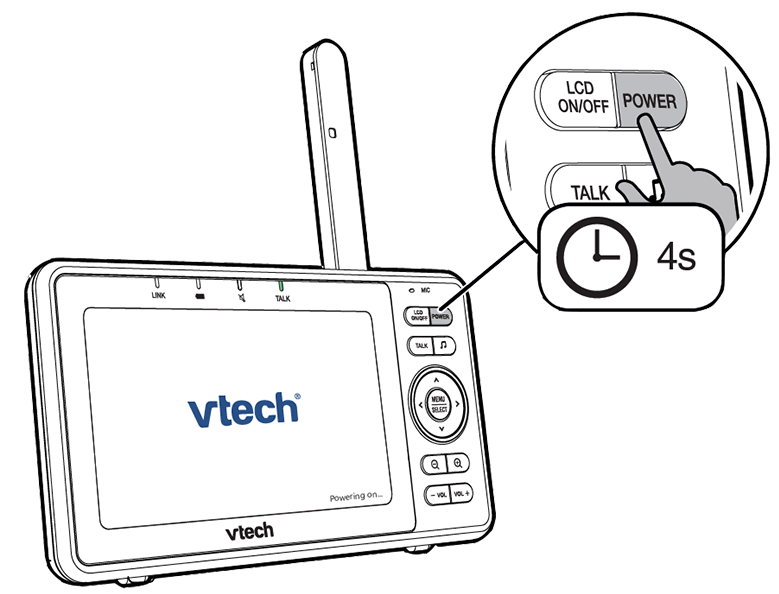
- Power on both units first: Plug the baby camera into a wall outlet using the included Vtech adapter. Wait 10 seconds for the camera to fully boot—you’ll see a blue status light flash steadily when it’s ready. Next, plug in the parent unit and wait for the home screen to load fully. If your parent unit has a removable rechargeable battery, confirm it’s inserted and charged to at least 20% before starting; low battery is one of the most common causes of pairing failure.
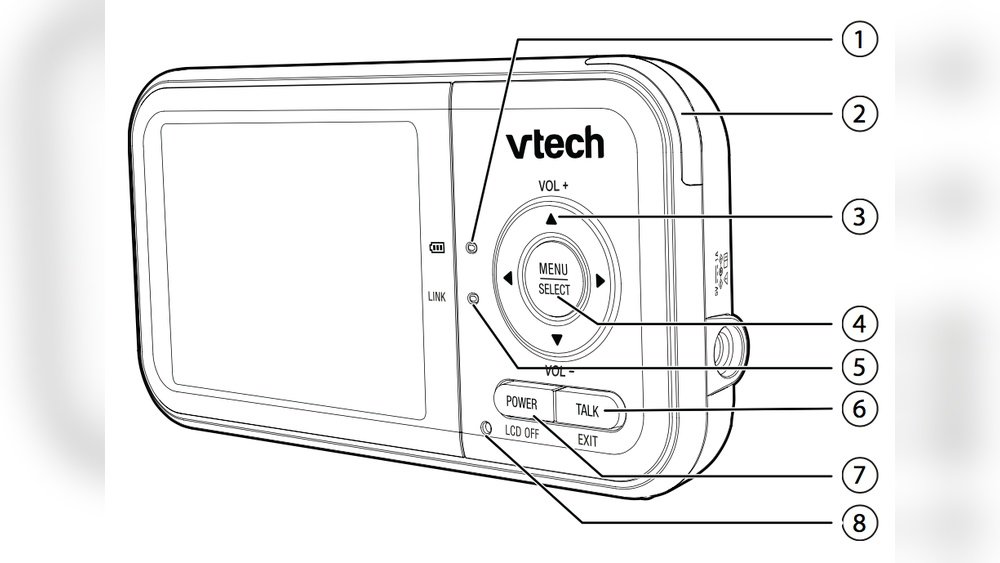
- Activate pairing mode on the parent unit: Press and hold the "Menu" button for 3 seconds, then use the navigation arrows to select Camera Setup > Add New Camera. The screen will show a blinking "Searching" icon. A common mistake here is holding the pairing button for more than 5 seconds, which triggers a factory reset instead of pairing mode—release the button as soon as the menu appears.
- Activate pairing mode on the baby camera: Press and hold the small pairing button (located on the back or bottom of the camera, next to the power port) for 2-3 seconds until the status light flashes rapidly. The camera will emit a soft chime when it enters pairing mode.
- Wait for automatic connection: The parent unit will detect the camera within 30 seconds. You’ll see a pop-up confirmation on the parent unit screen, and the live feed will load within 10 seconds. Test the connection by clapping near the camera—you should hear the sound clearly on the parent unit, and see the audio visualizer move on the screen.
- Repeat for additional cameras: If adding more cameras, repeat steps 2-4 for each unit, assigning each a unique channel (1-4 for most models) to avoid signal overlap between feeds.
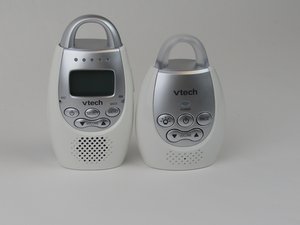
 Vtech camera and parent units ready for initial power-on, the first step in linking
Credit: vtech.zendesk.com
Vtech camera and parent units ready for initial power-on, the first step in linking
Credit: vtech.zendesk.com
Linking Wi-Fi-Enabled Vtech Monitors (App Connected)
These models link to your home network for remote viewing via the Vtech app:
- Download the official Vtech Baby Monitor app from the Apple App Store or Google Play Store. The 2026 updated version includes bug fixes for iOS 18 and Android 15 compatibility, so make sure you install the latest release rather than an old cached version. Create an account or log in if you already have one.
- Power on both units: Plug the camera and parent unit into power, wait for them to fully boot. The camera’s status light will flash blue when it enters setup mode.
- Connect the camera to your Wi-Fi network: Open the Vtech app, tap Add Device, then scan the QR code on the bottom of the camera (or enter the 8-digit setup code manually if the QR is damaged). Select your home 2.4GHz Wi-Fi network—note that nearly all 2026 Vtech monitors do not support 5GHz networks, as the higher frequency causes more signal interference for baby monitor use. Enter your Wi-Fi password when prompted.
- Link the parent unit to the app: Once the camera connects to Wi-Fi, the app will prompt you to link the parent unit. Turn on the parent unit, go to Settings > App Link, and enter the 6-digit pairing code displayed on the parent unit screen into the app. The units will sync within 1 minute.
- Test remote access: Turn off your phone’s cellular data to confirm you can view the camera feed over Wi-Fi. You can also grant access to other caregivers (like a grandparent or nanny) by sending them a time-limited invite link from the app.
Post-Setup Optimization for Clear, Reliable Monitoring
Once your units are linked, a few quick adjustments will improve your monitoring experience and reduce false alerts.
Adjust Audio and Video Settings
- Set the parent unit volume to 60-70% for most households: this is loud enough to hear quiet newborn cries, but not so loud that it startles sleeping babies or disrupts adult sleep. If you have mild hearing impairments, enable the Vtech vibration alert feature (standard on all 2026 models) for added notification.
- Adjust the camera’s night vision sensitivity: for fully dark nurseries, set it to "High" to get a clear black-and-white feed; for rooms with a small nightlight, set it to "Medium" to avoid overexposure.
- Enable motion tracking if your model supports it: this pans the camera automatically when it detects movement, so you don’t miss a baby rolling to the edge of the crib.
Set Custom Alerts
- Configure sound alerts to only trigger for loud, sustained noises (like crying) to avoid false alarms from white noise machines, street noise, or pets. Most Vtech models let you adjust the sound sensitivity threshold from 1-10, with 5 as the default for average homes; lower the number if you’re getting too many false alerts, or raise it if you’re not hearing quiet fusses.
- Enable temperature alerts: set the upper and lower limits to 68-72°F (20-22°C), the AAP’s recommended nursery temperature range. The camera will send an alert to the parent unit or app if the room goes outside this range.
- Test all alerts by making a noise near the camera or adjusting the room temperature to confirm they trigger correctly before leaving baby unattended.
Troubleshooting Common Linking Issues
Even with careful setup, you may run into occasional connection issues. The fixes below address the most common problems reported by Vtech users in 2026. For more on this, see our guide on wearable baby breathing and roll monitor.
Pairing Fails or No Signal
- Confirm both units are within 3 feet of each other during pairing: RF signals can’t penetrate thick concrete walls, metal appliances, or large pieces of furniture. If you’re trying to pair from another room, move the units closer first.
- Check for signal interference: baby monitors, cordless phones, and microwaves all use the 2.4GHz band, which can disrupt Vtech RF connections. Move the camera and parent unit away from these devices, or change the RF channel on the parent unit (Settings > Channel) to 1, 6, or 11, which are the least crowded frequencies.
- Reset both units if pairing fails: unplug both from power, wait 60 seconds (not 10, as older guides suggest—60 seconds fully drains residual power from the units), then plug them back in and restart the pairing process. If the issue persists, perform a factory reset by holding the reset button (small pinhole on the back of the unit) for 10 seconds with a paperclip, then re-pair from scratch.
Wi-Fi Models Won’t Connect to the App
- Confirm your router is broadcasting a 2.4GHz network: as of 2026, nearly all Vtech Wi-Fi monitors do not support 5GHz, so if your router is set to 5GHz only, you’ll need to enable the 2.4GHz band in your router settings first.
- Check that your Wi-Fi signal is strong in the nursery: weak signals cause lag, frozen feeds, and dropped alerts. Use a Wi-Fi extender if the signal is weaker than 2 bars in the baby’s room.
- Update the Vtech app and monitor firmware: Vtech released 3 firmware updates in 2025-2026 to fix app connection bugs for iOS and Android users. Open the app, go to Settings > Firmware Update to install the latest version.
 Step-by-step video guide for pairing Vtech monitor units, helpful for visual learners
Credit: www.youtube.com
Step-by-step video guide for pairing Vtech monitor units, helpful for visual learners
Credit: www.youtube.com
Safe Placement and Routine Maintenance
Proper care and placement will keep your monitor working reliably for years, and keep your baby safe.
Safe Monitor Placement
Per AAP safe infant monitoring guidelines, place the baby camera at least 3 feet from the crib, on a stable surface or mounted on the wall away from reach, to avoid strangulation hazards from cords. Never place the camera inside the crib or attach it to crib slats, as this can pose a suffocation risk for mobile babies. If you’re setting up the nursery for the first time, check crib safety basics to ensure the entire sleep space is hazard-free.
Routine Care for Long-Term Use
- Clean the camera lens weekly with a soft, dry microfiber cloth to avoid dust buildup that blurs video feeds. Never use glass cleaner or abrasive cloths, as these can scratch the lens coating.
- Avoid exposing the parent unit and camera to extreme temperatures (below 32°F or above 95°F / 0°C to 35°C) to preserve battery life.
- If you plan to store the monitor for more than 2 weeks, remove the battery from the parent unit to prevent battery drain and permanent damage.
- The lightweight parent unit fits easily in a diaper bag or stroller pocket, so you can move around the house while monitoring baby; if you need to fold your stroller quickly while keeping an eye on your little one, check stroller portability tips for smooth handling.
- For travel with a young baby, review seasonal baby outerwear to ensure your little one stays warm during transit, and pack the monitor in a protective case to avoid damage.
Frequently Asked Questions
Do I need Wi-Fi to link my Vtech baby monitor?
No, most standard Vtech baby monitors use a direct radio frequency (RF) connection to link the camera and parent unit, no internet or Wi-Fi required. Only newer app-enabled Vtech models (released 2023 and later) require Wi-Fi for remote viewing and app alerts. If you don’t need remote access, an RF model is more secure, as it can’t be accessed remotely by bad actors. For more on this, see our guide on 10 best self warming baby bottle systems for.
Can I link Vtech cameras from different model series?
No, for reliable pairing, use cameras and parent units from the same product series. For example, a VM525 series camera will not pair with a DM221 parent unit, even if both are Vtech products. Mixing generations can cause signal drops, missing alerts, and compatibility issues with firmware updates.
Why does my Vtech monitor keep losing signal?
Signal drops are usually caused by interference from other 2.4GHz devices (cordless phones, microwaves, Wi-Fi routers) or physical obstructions like thick walls or metal appliances. Move the camera and parent unit closer together, change the RF channel in the parent unit settings, or add a Wi-Fi extender for app-enabled models to fix this issue. For more on this, see our guide on best baby monitor for car.
How many Vtech cameras can I link to one parent unit?
Most entry-level Vtech RF models support up to 4 cameras per parent unit, while premium models support up to 8. Check your model’s spec sheet for the exact limit, as exceeding the supported number will cause pairing failures for additional cameras.
Can I use my Vtech monitor when traveling?
Yes, RF models work anywhere without Wi-Fi, making them ideal for travel. For Wi-Fi models, you’ll need to connect to the local Wi-Fi network at your destination and re-pair the camera if the network name or password is different. If you’re traveling with a baby who naps early, review early nap tips to adjust your schedule while on the go.
For routine care of your baby's other gear, check affordable baby grooming options to keep hairbrushes and nail clippers in good condition.
Conclusion
Linking your Vtech baby monitor takes as little as 5 minutes for RF models, and once set up, you’ll have peace of mind knowing you can check on your baby from anywhere in your home (or remotely, for Wi-Fi models). To avoid common pairing issues, always use the included Vtech power adapters, keep units within 3 feet of each other during setup, and update your monitor firmware regularly for the best performance. If you run into model-specific issues, Vtech’s 24/7 support team can walk you through troubleshooting for your exact hardware. For more baby gear setup guides and parenting tips to simplify your routine, browse our full library of expert-vetted resources.

Emma Grace is a devoted mother and passionate content writer at BestBabyCart.com. With firsthand parenting experience and a love for research, she creates helpful guides and honest reviews to support parents in choosing the best for their babies. Her goal is to make parenthood easier, one article at a time.