
Setting up your Vtech baby monitor might seem tricky at first, but it doesn’t have to be. If you want to keep a close eye on your little one without any hassle, knowing how to pair your Vtech baby monitor quickly is key.
In this guide, you’ll discover simple, step-by-step instructions that make the process smooth and stress-free. By the end, you’ll have your monitor connected and ready to give you peace of mind. Keep reading to learn exactly what you need to do—your baby’s safety and your comfort depend on it.

Credit: www.scribd.com
Choosing The Right Vtech Model
Choosing the right Vtech baby monitor is important for peace of mind. The right model helps you watch your baby clearly and hear every sound. Vtech offers many models, each with special features. Some focus on video quality, while others offer long battery life or easy setup. Picking the best one depends on your needs and home setup.
Popular Vtech Baby Monitor Models
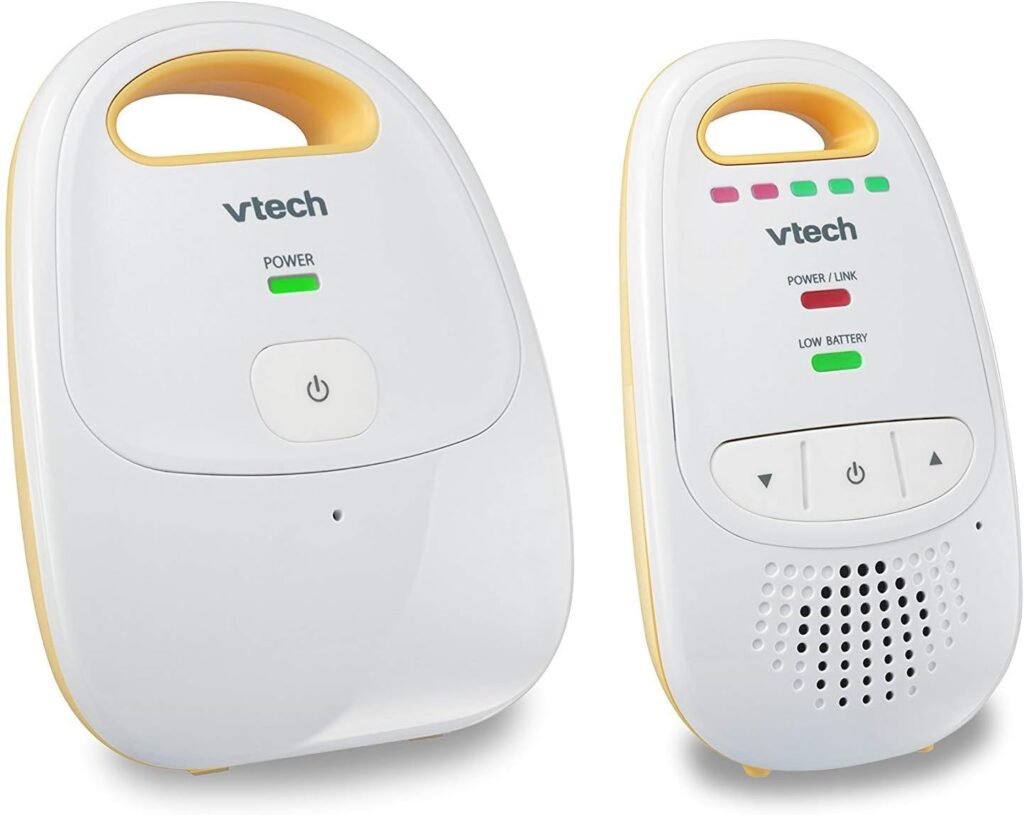
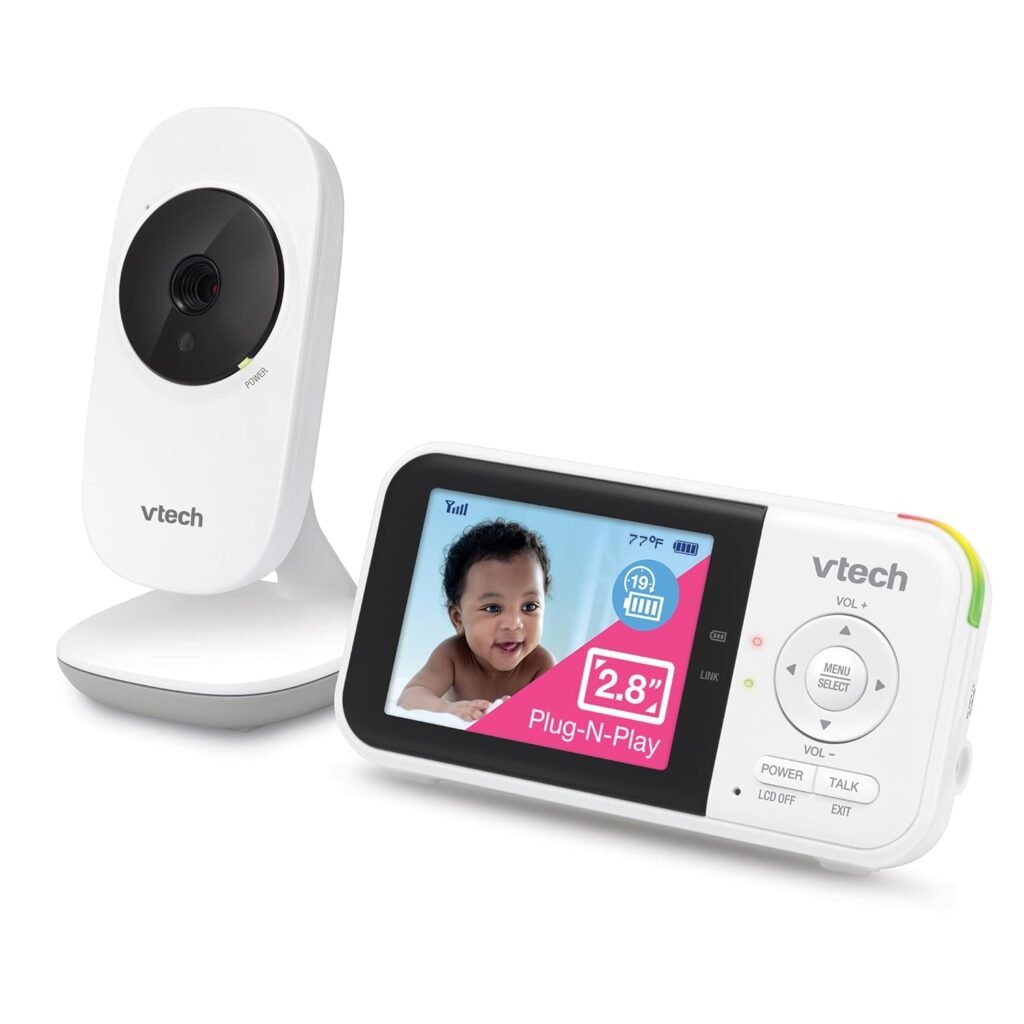
Vtech has several popular baby monitor models. The DM221 is a simple audio monitor with clear sound and long range. The VM321 is a video monitor with a 2.8-inch color screen and two-way talk. The VM346 offers a bigger 3.5-inch screen and night vision for dark rooms. The VM525 is a more advanced model with a large 5-inch screen and remote pan, tilt, and zoom. Each model suits different needs and budgets.
Features To Consider
Start with screen size if you want video. Larger screens show more detail but cost more. Battery life matters for portable use. Some models last all day; others need charging often. Night vision helps you see your baby in the dark. Two-way talk lets you soothe your baby from another room. Range is key if your home is large. Consider extra features like lullabies or temperature sensors. Choose features that fit your daily routine.
Preparing For Setup
Preparing your Vtech baby monitor for setup is an important first step. It makes sure everything works well and connects properly. Taking time to prepare helps avoid problems later.
This guide covers two key parts: unboxing and checking components, then charging and powering on. Follow these steps for a smooth start.
Unboxing And Checking Components
Open the box carefully. Take out all items and place them on a flat surface. Check the list in the manual to confirm each part is there.
Look for the parent unit, baby unit, power adapters, and any mounting accessories. Make sure none of these parts are missing or damaged. If you find anything wrong, contact the seller before setup.
Charging And Powering On
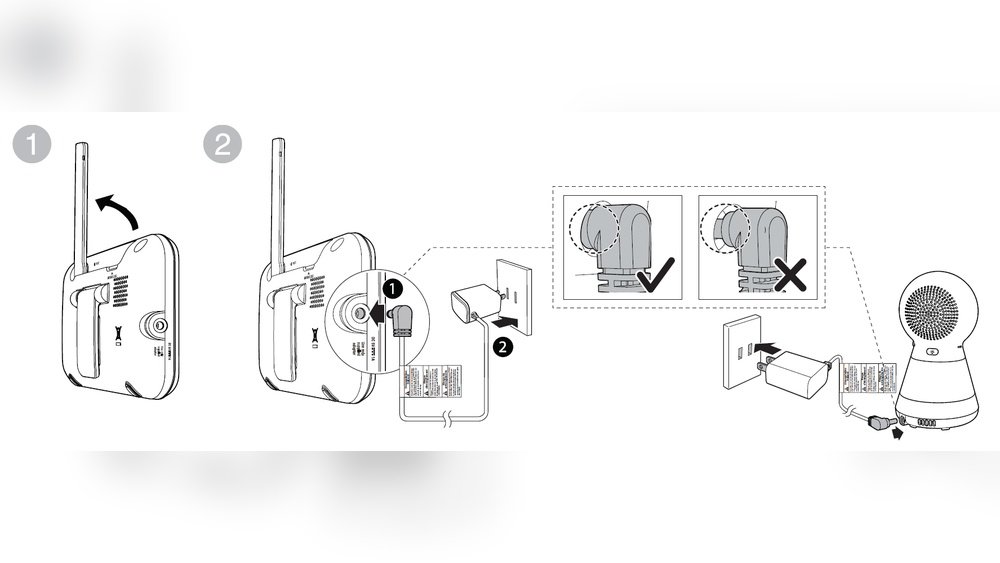
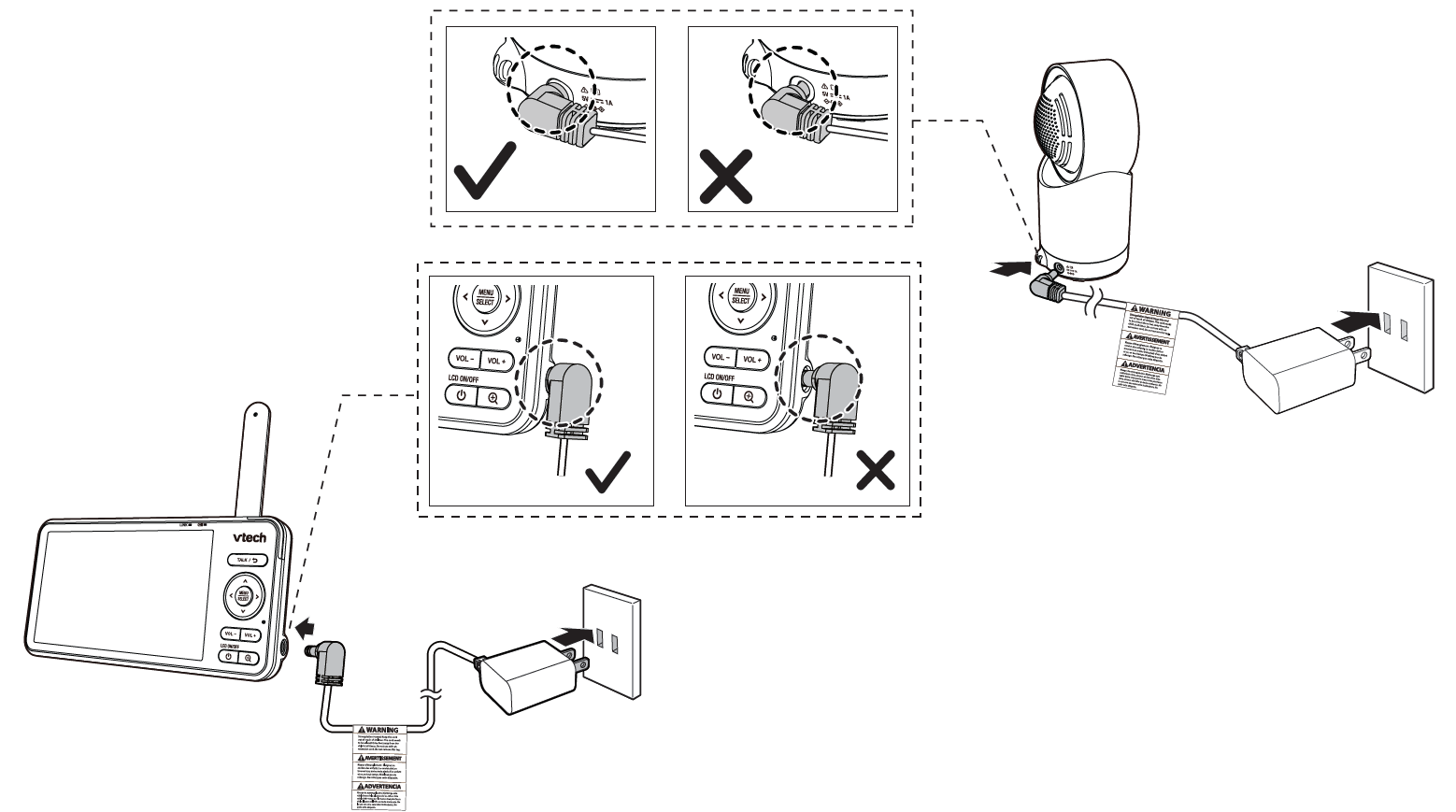
Charge both units fully before pairing. Connect each unit to its power adapter and plug into a wall socket. Let them charge until the battery indicator shows full.
Press the power button to turn on each unit. Wait for the screens or lights to show the devices are active. This step prepares them for a quick and easy pairing process.
Pairing The Monitor And Camera
Pairing the Vtech baby monitor with its camera is the key step to start using the device. This connection allows the monitor to receive video and sound from the camera. Without pairing, the monitor cannot display the baby’s room.
The process is simple and takes only a few minutes. Follow clear steps to ensure the monitor and camera communicate properly. Two main methods exist: using the pairing button and manual pairing. Each method suits different situations.
Using The Pairing Button
First, turn on both the monitor and the camera. Locate the pairing button on the back or bottom of the camera. Press and hold this button for about 3 seconds. The camera light will start blinking, showing it is in pairing mode.
Next, press the pairing button on the monitor. Hold it until the monitor shows a connection message. The blinking light will turn solid, confirming the pairing is successful. Now, the monitor displays live video from the camera. This method is quick and works for most models.
Manual Pairing Steps
Manual pairing helps if the automatic method fails. Begin by turning off both devices. Turn on the camera first and put it in pairing mode by pressing the pairing button for 3 seconds. The camera light will blink.
On the monitor, open the menu and find the pairing option. Use the monitor controls to select the camera ID from the list. Confirm the selection to connect. The monitor screen will then show the live feed. This method is useful when multiple cameras exist or the auto pairing does not work.
Troubleshooting Common Issues
Troubleshooting common issues with your Vtech baby monitor is important for smooth use. Problems can happen, but many have simple fixes. Knowing how to solve these issues helps keep your monitor working well. This section covers two common problems: connection troubles and audio-video sync issues.
Connection Problems
Connection problems stop your baby monitor from working right. Check the power on both the camera and the parent unit first. Make sure both devices are close enough to each other. Walls and large furniture can block signals.
Try turning off both devices and turning them back on. This can reset the connection. Also, check if the batteries are charged or if the devices are plugged in. If the problem stays, try re-pairing the devices by following the pairing steps again.
Audio And Video Sync Issues
Audio and video sync issues make sounds and images not match. This can be confusing and annoying. Start by moving the devices closer. A weak signal often causes lag between sound and picture.
Restart both units to clear any temporary glitches. Check for any obstacles blocking the signal. Updating the monitor’s firmware can also fix bugs causing sync problems. Keep the baby monitor’s firmware up to date for best performance.
Optimizing Monitor Settings
Optimizing your Vtech baby monitor settings helps improve your monitoring experience. Proper settings ensure clear sound and video. They also keep you aware of your baby’s needs without disturbance. Adjusting volume, brightness, and alerts tailors the monitor to your room and lifestyle. This section explains how to set these features correctly.
Adjusting Volume And Brightness
Start by setting the volume to a comfortable level. Loud sound may disturb your baby. Low sound may cause missed alerts. Find a balance that lets you hear clearly. Next, adjust the screen brightness. Bright screens may distract your baby at night. Dimmer screens save battery and reduce glare. Some monitors offer automatic brightness settings. Use this feature for easy adjustments throughout the day.
Setting Up Alerts And Notifications
Alerts keep you informed about your baby’s activity. Set sound alerts for crying or movement. Choose vibration alerts if you prefer silent notifications. Customize alert tones to avoid confusion with other devices. Many monitors allow setting alert sensitivity. Lower sensitivity reduces false alarms. Higher sensitivity catches even small sounds. Test alert settings to ensure they suit your needs.

Credit: manuals.plus
Credit: vtech.zendesk.com
Frequently Asked Questions
How Do I Pair My Vtech Baby Monitor?
To pair your Vtech baby monitor, turn on both units. Press the “pair” button on the parent unit. Then, press the “pair” button on the baby unit until the connection is confirmed by a beep or light.
Why Won’t My Vtech Baby Monitor Pair?
Check if both units are powered on and close to each other. Ensure batteries are charged or replaced. Restart both devices and try pairing again. Interference from other electronics can also affect pairing.
Can I Pair Multiple Baby Units With One Parent Unit?
Yes, many Vtech monitors support multiple baby units. Follow the same pairing process for each baby unit. Make sure to consult your model’s manual for specific instructions and limitations.
How Do I Reset My Vtech Baby Monitor For Pairing?
Turn off both units. Press and hold the “pair” button on the parent unit for 10 seconds. Release and restart both units. Then, try pairing again as per the instructions.
Conclusion
Pairing your Vtech baby monitor is simple and quick. Just follow the steps carefully to connect the devices. This helps you keep an eye on your baby anytime. Proper pairing ensures clear sound and video quality. Stay close to your child even from another room.
Troubleshooting is easy with the user guide nearby. Enjoy peace of mind and better baby care. Keep your monitor charged and within range. Regular checks help avoid connection problems later. Trust your Vtech monitor to keep your baby safe.

Emma Grace is a devoted mother and passionate content writer at BestBabyCart.com. With firsthand parenting experience and a love for research, she creates helpful guides and honest reviews to support parents in choosing the best for their babies. Her goal is to make parenthood easier, one article at a time.