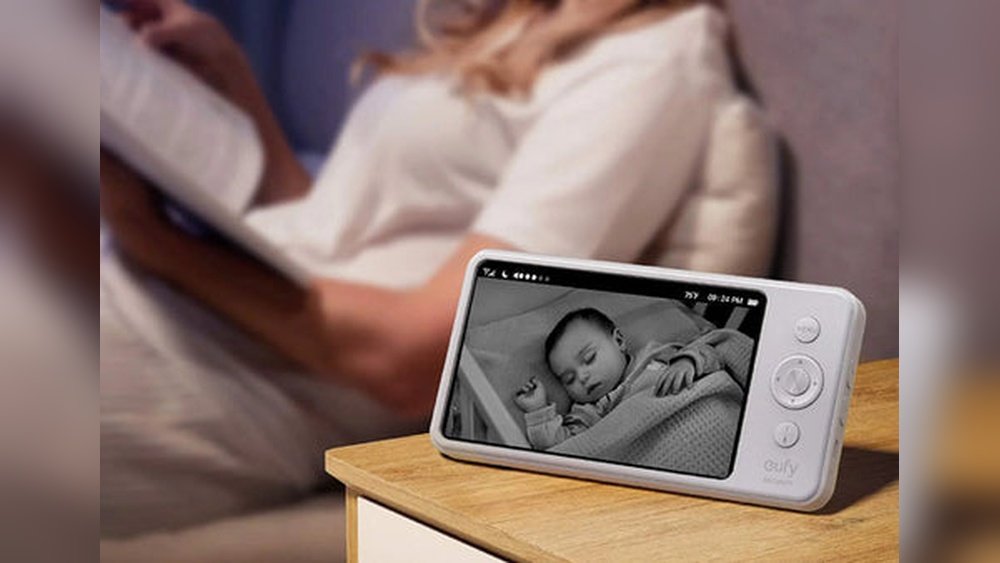
Your baby is finally down. The last thing you want is to buy, mount, and learn a device you'll use for a year. If you already have a spare iPhone — or a partner with a second phone — you own the two cameras you need. With the right app, a stable mount, and about fifteen minutes of setup, an iPhone can stream clear video, carry two-way audio, and ping you when your baby cries.
The catch is that most "set it up in five minutes" guides skip the details that actually matter. They claim the iPhone has night vision (it doesn't), say apps can run in the background (camera capture can't), and forget that a phone in a nursery is a physical hazard before it's a technical one. This guide covers the setup, the real limits, and the safety and security steps that keep the feed useful and private. You can also read our guide on how to read baby monitor at hospital.
Why Use an iPhone as a Baby Monitor in 2026?
Dedicated video monitors are reliable, but they're single-purpose hardware. An iPhone is already paid for, already familiar, and already in your pocket. The cost difference is the main reason parents start here.
| Option | Typical upfront cost | Ongoing cost | What you get |
|---|---|---|---|
| Dedicated video monitor | Higher | None | A dedicated receiver, no phone required |
| iPhone app, one-time purchase | Low | None | Video, audio, alerts |
| iPhone app, subscription | Free to low | Monthly | Cloud clips, more cameras |
| Extra used iPhone | Varies | None | The only real hardware cost |
Prices vary by app, region, and device, so check the App Store listing before you commit. What doesn't vary is the trade-off: you're trading money for convenience, and convenience for reliability. You can also read our guide on best baby monitors for small apartments.
Be clear-eyed about what this is. A phone monitor is a convenience tool, not a medical device. It won't track heart rate, oxygen saturation, or breathing. If your baby was premature or has known breathing concerns, look at dedicated monitors that track breathing instead of relying on a phone, and treat anything a consumer app shows you as a flag to act on, not a diagnosis.
There are three other honest limits worth knowing up front:
- The phone gets hot. Video streaming plus charging plus a closed bedroom adds up. Cheap cases and covered vents make it worse.
- iOS is not a security camera platform. The camera stops when the app is backgrounded, and the OS will interrupt you with calls, updates, and lock screens unless you disable them.
- The physical risk is real. A phone is a heavy, hard object with a lithium battery and a charging cable. Placement matters more than megapixels.
What You Need Before You Start
| Item | Why it matters | Practical note |
|---|---|---|
| Baby unit iPhone | Camera and microphone | A spare iPhone 8 or newer is enough; it just needs to run the current app |
| Parent unit | To watch and hear | Second iPhone, iPad, or Mac |
| Adjustable mount | Stable, safe view | Rated for at least twice the phone's weight |
| Long charging cable | Continuous power | Route it out of reach, ideally in a raceway |
| Stable Wi-Fi | Video quality | 2.4 GHz for range, 5 GHz for speed |
| A cool, ventilated spot | Phone heat | Avoid direct sun, vents, and enclosed shelving |
Two devices are non-negotiable. If you don't have a spare, a used iPhone from a family member or a refurbished unit is still cheaper than most dedicated monitors. And no — one iPhone cannot watch its own camera feed. You can also read our guide on how to link vtech baby monitor.
Step 1: Choose an App You Can Actually Trust
The app is the whole product. A mediocre app on a good phone is a bad monitor; a well-maintained app on an older iPhone is a good one. Skip random, unrated apps from the App Store, and check the version history and privacy label before you download.
What separates a good app from a risky one
- End-to-end encryption for the live feed, not just "encrypted in transit."
- A real privacy policy that names what data is collected and where video is stored.
- Frequent updates — look for a release in the last few months, not the last few years.
- Background audio handling that is documented openly, rather than claimed vaguely.
- No forced ad breaks during a live stream.
The leading options compared
| App | Best for | Connection | Standout feature |
|---|---|---|---|
| Cloud Baby Monitor | Overall reliability | Wi-Fi/Bluetooth | Multiple viewers, motion and sound alerts |
| Baby Monitor 3G | Remote viewing | Wi-Fi + cellular | Works over mobile data |
| Dormi | Sound-focused monitoring | Wi-Fi | Adjustable sound sensitivity and recording |
App stores change constantly, so treat this as a starting shortlist rather than a final ranking. Install one, test it, and uninstall if it doesn't fit. You can also read our guide on best baby monitor for twins.
Free vs paid
Free apps are fine for a weekend at a rental, but they usually cap resolution, insert ads, limit clip length, and collect more data. Paid apps typically remove ads, unlock higher resolution, and include better alerting. For overnight use, a paid app is a small, one-time investment.
The non-negotiable feature checklist
- End-to-end encryption
- Background audio that keeps working when the screen is off
- Low-battery alert on the baby unit
- Two-way audio
- Adjustable sound and motion sensitivity
- A "screen dim" or "hide video" mode for the baby unit
- Regular security updates from the developer
Step 2: Set Up the Nursery iPhone (Baby Unit)
Proper setup is the difference between a monitor that works all night and one that dies at 2 a.m.
Grant the right permissions
Open Settings → Privacy & Security and confirm the app has camera and microphone access. On iOS 14 and later, you may also see a Local Network prompt; that's what lets the app find the parent unit on your Wi-Fi. Deny it and the app may fall back to a remote relay, which is slower and less private. You can also read our guide on best nursery furniture deals.
Keep the feed alive when the screen is off
In practice, iOS pauses camera capture when an app goes to the background. Audio may continue, but video does not. That means:
- Keep the app in the foreground.
- Turn on Guided Access (Settings → Accessibility → Guided Access) so the phone stays locked into the app.
- Set Auto-Lock to Never for the session, or let Guided Access handle it.
- Turn on Do Not Disturb and disable notification previews so the screen doesn't light up.
Some apps offer a "screen off" mode that dims the display to near-black while the camera keeps recording. Check before you mount the phone — a bright screen in a nursery is a sleep problem.
Manage power, heat, and battery
Keep the baby unit plugged in. A phone that runs on battery will overheat, throttle, and shut down. Practical steps:
- Take the case off during long sessions.
- Don't cover the phone with a blanket or set it on a cushion.
- Avoid charging on a bed or sofa; use a hard, ventilated surface.
- Check for battery swelling on older phones and retire any device that shows it.
If you must run it cordlessly, turn off cellular data, disable background refresh for other apps, and lower the brightness. You can also read our guide on what age can babies face forward in car seat.
Stabilise the Wi-Fi
Run a speed test on the phone you'll use as the baby unit. You want roughly 3–5 Mbps of upload headroom for 1080p, plus low latency. If the nursery is at the far end of the house, 2.4 GHz will reach further than 5 GHz, even though it's slower. For tight-space setups, where the router is often in the same room, 5 GHz is usually fine.
Put the baby unit on a guest network rather than your main one. If a smart device or app is compromised, it can't reach your laptops or network drive. If you already run a dedicated baby monitor, the same logic applies to linking a VTech base — keep it on the isolated network too. You can also read our guide on filterless cool mist nursery humidifier.
If your baby is congested, keeping the air moist with a cool-mist humidifier can help, but place the unit away from the phone and away from the crib so the mist doesn't fog the lens or trip the sound alerts.
Step 3: Position the Phone Safely
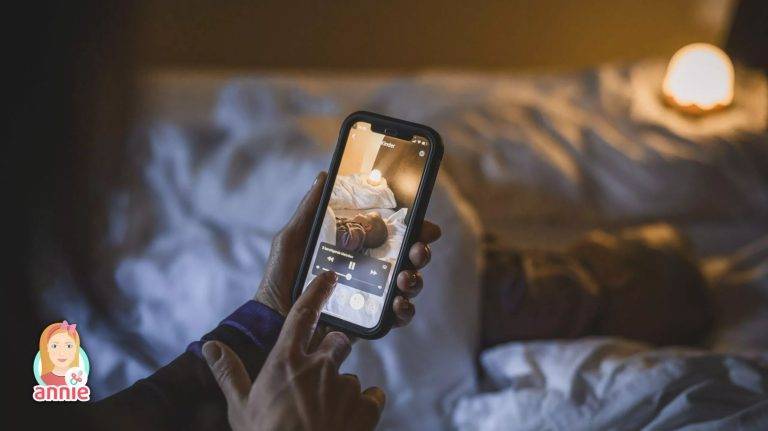
A stable mount keeps the camera aimed at the mattress and the phone out of reach. Credit: www.anniebabymonitor.com
Where to put it
Place the phone 3–6 feet from the crib, at a 45-degree angle facing the mattress, and high enough to see the whole sleep surface without a wide-angle stretch. A dresser, a wall shelf, or a dedicated phone mount all work. Avoid windows and direct light, which cause glare — and avoid vents and radiators, which blow the microphone and cook the phone. You can also read our guide on best split screen non wifi baby monitors.
Mounting and cable management
Use a mount rated for at least twice the phone's weight, and fix it to a stud or a solid shelf rather than drywall anchors. Adhesive mounts are fine for a weekend; they are not fine for a 1 a.m. toddler.
Cables are the bigger risk. Keep the charging cable at least three feet from the crib, run it through a cable channel or behind furniture, and tuck any slack out of reach. If a cable can be reached, it can be pulled. You can also read our guide on baby sleep training tips.
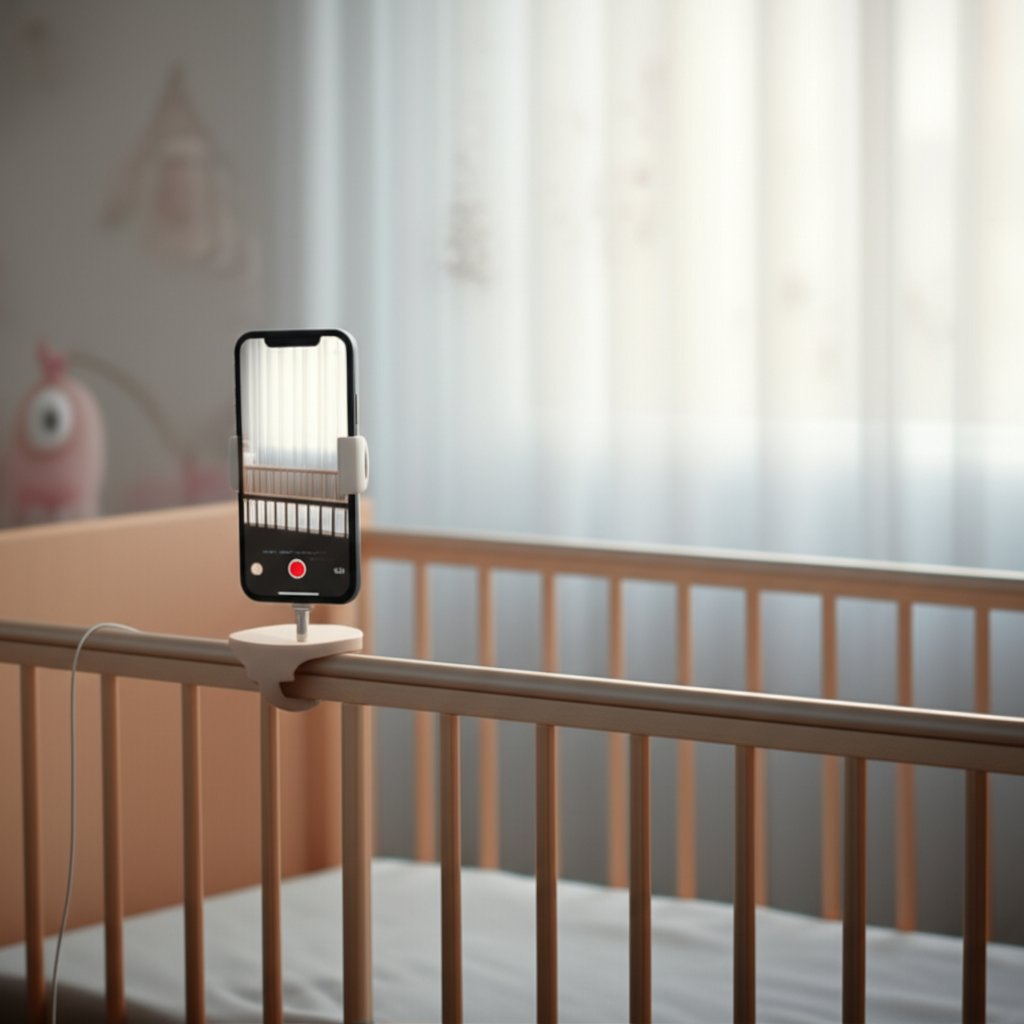
Wall mounting clears the crib rail and keeps the cable away from little hands. Credit: arenti.com
Common placement mistakes
| Mistake | Why it fails | Fix |
|---|---|---|
| Phone inside the crib | Fall, suffocation, and strangulation risk | Never place it in or on the crib |
| Pointing at a window | Glare washes out the image | Angle away from the light source |
| Next to a fan or noise machine | Distorts audio and triggers false alerts | Move it at least a few feet away |
| Blocked lens | Crib bumpers or decor spoil the view | Clear the line of sight |
| Wobbly surface | A dropped phone is a hazard | Use a fixed mount, not a shelf edge |
If you're still furnishing the room, kitting out the nursery with a shelf or dresser that has a clear wall above the crib makes positioning far easier.
Step 4: Set Up the Parent Unit
Pair a second iPhone
Install the same app on both devices, open the pairing screen on the baby unit, and enter the code or room ID on the parent unit. Most apps allow multiple viewers, so you can add your partner's phone without giving them your Apple ID.
Use an iPad, Mac, or Apple TV
An iPad is the best stationary parent unit — bigger screen, louder speakers, and a battery that easily lasts a night in Do Not Disturb. You can also mirror the iPhone to an Apple TV in your bedroom for a hands-free view.
Share access without sharing your password
Use the app's built-in family or guest access rather than passing around your login. Parents running double-nursery setups usually pair one baby unit per crib and split the screen; check the app supports it before you pay. If you need two feeds at once, a split-screen app is far cheaper than a second receiver.
Sync alerts across devices
Set a short delay on sound alerts so brief noises don't wake the whole house. Turn off push notifications for everything except the monitor app. And if you're using the monitor to support gentle habits, settling into a routine is easier when you can hear the difference between a stir and a real wake-up.
Step 5: Tune Alerts, Night Mode, and Recording
Sound and motion sensitivity
If you use a white noise machine, set sound sensitivity to medium so the machine doesn't trigger every 30 seconds. For motion, raise the threshold so a pet or a fluttering blanket doesn't send an alert — you want to be notified when your baby is actually moving, not when the curtain moves.
The truth about night vision on iPhone
This is the part most guides get wrong. The iPhone has no true night-vision camera. It has a genuinely good low-light sensor, and apps can push exposure and ISO, but in a fully dark room the image will be soft and noisy. Face ID's infrared hardware isn't exposed to third-party apps.
If you need a pitch-black image, keep a very dim red or amber nightlight on, or accept that a dedicated IR camera is simply better at this one job. A phone is not a substitute for infrared hardware.
Record and save clips
Use the app's built-in recording, or add Screen Recording to Control Center and capture the feed directly. Keep clips in an encrypted folder on your device, and don't upload them to shared cloud storage unless the app offers end-to-end encryption.
Step 6: Lock Down Privacy and Security
A monitor feed is a live view of your child's room. Treat it like one.
Feed security
- Enable two-factor authentication on the app account.
- Use a unique password, not the one you use for your Apple ID.
- Use only apps that advertise end-to-end encryption.
- Never share access links or login codes outside your household.
Network hygiene
- Keep the baby unit on a guest network.
- Update the router's firmware and the app regularly.
- Disable remote access on any app you don't need it for.
- Turn off AirDrop and Bluetooth on both devices when not in use.
The FTC's smart-device security guidance covers routers, cameras, and passwords in a short read; it's worth ten minutes before you leave a phone running overnight.
Monthly privacy check
Review app permissions once a month for location, contacts, and photos. Disable iCloud Photos backup for the monitor app unless you want clips stored in the cloud. Uninstall apps that haven't been updated in over a year.
Step 7: Test the Setup Before You Trust It
The 24-hour trial
Don't rely on a new setup for a full night until you've tested it. Run a one-hour test in daylight, then one nap, then an overnight. During the test:
- Measure how long an alert takes to reach your phone.
- Walk to the far corner of the house and into the garden.
- Close the door and see if the signal …holds through walls, and whether the feed survives the door closing.
Fix the failures your test reveals
- Video freezes when the screen locks → Auto-Lock is ending the session. Turn on Guided Access and set Auto-Lock to Never for that app.
- Audio goes choppy but video is fine → You're on a congested 2.4 GHz band. Switch to 5 GHz or move the router.
- Alerts arrive late or not at all → Check notification permissions and make sure Focus mode isn't silencing the app.
- Image looks soft and grainy → Heat or darkness. Take the case off, improve airflow, and add a very dim red light.
- The feed dropped once, then reconnected → Wi-Fi roaming. Pin the phone to a single band instead of letting it hunt for the stronger signal.
A common mistake is running this test on the same Wi-Fi you'll actually use, then trusting the monitor after a router reboot. Restart the router, unplug the baby unit, and repeat the test once — if anything fails twice, don't rely on it overnight.
Troubleshooting Common iPhone Monitor Problems
Laggy or disconnecting feeds
Lag is almost always Wi-Fi or heat, not the app. Start by switching bands, then restart the router and both phones. If you use a VPN, disable it during monitoring — it adds a hop between the two devices. On cellular, you need at least three solid bars; below that, the parent unit will buffer and alerts will arrive late. In practice, the most common culprit is a phone that has quietly rejoined the wrong network after a router restart.
Blurry video or muffled audio
Wipe the camera lens and the microphone port with a dry microfiber cloth. Baby monitor phones sit near a white noise machine, a humidifier, and an open window — all of which leave a film on the lens. Then confirm the app still has camera and microphone permission (iOS occasionally revokes access after a major update) and check whether the app has a lower resolution setting enabled for data saving.
Crashes and battery drain
Update the app and iOS together; a new app version on old iOS is a common cause of crash loops. If it persists, delete the app, reinstall, and re-pair. Disable Low Power Mode on the baby unit — it pauses background activity. On the parent unit, Low Power Mode is fine and can add hours overnight. Excessive heat while charging is a different problem: use the original cable, avoid charging pads, and don't stack the phone on fabric.

The parent view should show the feed, sound level, and alert toggles on one screen.
When an iPhone Monitor Is Not the Right Choice
An iPhone is the right tool for a healthy baby, a spare phone, and a parent who's mostly in the house. It is the wrong tool in these situations:
- A baby with any medical or breathing concerns. Consumer apps can't measure anything medically meaningful, and false reassurance is worse than no data.
- A home with unreliable Wi-Fi. If the feed drops more than once a week, you'll stop trusting it and start checking in person — which defeats the purpose.
- Multiples in separate rooms. You need two baby units plus a parent device that can split-screen, and the battery maths stops working.
- No spare phone. Buying a used iPhone is still often cheaper than a dedicated monitor, but at that point compare it against a basic video monitor with a wired receiver before you commit.
Build a Night-Feed Station That Works With the Monitor
The monitor reduces the number of trips you make — but it doesn't remove them. A well-organised changing area near the nursery means you can act on what you see on screen without fumbling in the dark.
Put a dedicated caddy beside the chair, stocked with a fresh nappy, a hat, a spare sleep sack, and a change of clothes. If you're deciding what to put in it, a dedicated caddy is the fastest version of the job. For smaller rooms, go through walking through the options before you buy, since stacking bins waste more space than they save. Keep gentle wipes on hand — the low-fragrance type, so you're not introducing a new scent into a room where the baby is already trying to settle. And a short budget-friendly picks list is worth a look if you'd rather spend the money on the monitor app.
If you're reading this while your baby is close to transitioning, note that many parents keep the monitor running straight through the moving to pull-ups stage — monitoring a toddler who can climb out of the cot is a different job, but the same camera still works.
Frequently Asked Questions
Can I use an iPhone as a baby monitor without Wi-Fi?
Partly. Some apps work over Bluetooth or a local connection between two phones, and some work over cellular data. What you can't do is monitor remotely without an internet connection of some kind. If you want to keep the feed entirely on your home network with no remote access, check the app has a documented local-only mode before you buy.
Does the baby unit screen have to stay on?
Yes for video. iOS pauses camera capture when an app is backgrounded, so the phone must stay in the app with the screen awake. Audio can keep playing in some apps, but that's not a full monitor. Use Guided Access and dim the display instead of trying to turn it off.
Does the iPhone have night vision?
No. It has a strong low-light sensor and computational exposure, but there is no exposed infrared camera for third-party apps. Face ID's IR hardware isn't available to apps. In a completely dark room, expect a soft, noisy image; a very dim red or amber light is the practical fix.
Is it as reliable as a dedicated monitor?
For daytime naps and a spare phone, yes. For overnight use in a household with a flaky router, generally no. Dedicated monitors have a stable wired link between camera and receiver, no app updates, no OS interruptions, and a receiver that doesn't need charging every night. Decide based on how often your Wi-Fi has dropped in the last month.
Can I watch from another country?
Yes, if both units have internet access and the app allows remote viewing. Use two-factor authentication, a unique password, and never log in on a public network. Test it once while you're still in the house — remote access that fails when you're away is the worst possible time to find out.
How much battery does the parent unit actually use?
Enough that you'll want a charger by the bed. Low Power Mode plus a dimmed screen gets most phones through a night, but continuous live video with audio on is a heavy mix. Keep the baby unit plugged in for the same reason.
What about a phone getting hot?
It's normal for a phone to warm up during long video sessions. It's not normal for it to be uncomfortable to touch — that means remove the case, stop charging it for an hour, and find a cooler, more open spot. Remove any phone with a swollen battery from service immediately.
Conclusion
Using an iPhone as a baby monitor is one of the cheapest genuine upgrades a new parent can make — provided you set it up like a tool rather than a video call. The app matters more than the phone, the mount matters more than the camera, and the one night you test it properly is worth more than any feature list.
Work through it in order: choose a well-maintained app with end-to-end encryption, keep the baby unit on a guest network with a rated mount and the cables out of reach, pin the app open with Guided Access, and run a 24-hour test before you sleep on it. Accept the two honest limits — no true night vision, and no medical tracking — and it will do almost everything a mid-range monitor does.
If it passes the test, you've saved a couple of hundred dollars and gained a setup you can take to a relative's house. If it doesn't, you'll know exactly why instead of finding out at 3 a.m.

Sophia Linda is a freelance writer and Certified Health Coach based in the Newbury Park, CA. Passionate about healthy living, she focuses on helping families stay active and connected to the outdoors. Together with her husband and their three young children, Sophia spends much of her time traveling, hiking, and camping. Her work has been featured on the bestbabycart blog, and she brings a practical, real-world perspective to reviewing baby products for parents.